Using the Search facility
When you have a large number of records it can be difficult to find the one that you’re
looking for. You can use the Search facility within every ledger to refine the number of
records displayed to help you find the information you need quickly and efficiently.
Even if you don’t know the exact details, you can use a wildcard to search for non-specific
information. For example, if you know a customer’s telephone number starts with 0171 you
could search for all the records Where > Telephone Number > Is Equal To > 0171* to
show all appropriate records.

Customisation and configurable columns in Sage 50
Customisation and configurable columns
It’s possible to customise Sage 50 Accounts so that the ledgers are presented in the way
you want them, and the opening ledger is the one most relevant to your business.
Within Tools > Options > View you can choose your own Initial View, that is the module that
appears by default when you first open the software, and choose whether you want the
Process Map or the List to be used for the Customers and Suppliers modules.
Within each ledger window you can show information which is not visible by default, and
hide information which is not relevant to your business. To do this right-click the column
heading and select the columns you require. So within the Customers list, for example, you
could hide the telephone number, and show the email address instead
It’s possible to customise Sage 50 Accounts so that the ledgers are presented in the way
you want them, and the opening ledger is the one most relevant to your business.
Within Tools > Options > View you can choose your own Initial View, that is the module that
appears by default when you first open the software, and choose whether you want the
Process Map or the List to be used for the Customers and Suppliers modules.
Within each ledger window you can show information which is not visible by default, and
hide information which is not relevant to your business. To do this right-click the column
heading and select the columns you require. So within the Customers list, for example, you
could hide the telephone number, and show the email address instead
Turning an invoice into a credit in Sage 50
Turning an invoice into a credit
If you have created an invoice for a customer, and subsequently need to issue a credit note,
there is no need to manually enter the information again. Simply highlight the invoice within
the list then click Credit at the bottom of the screen.
The credit note is then created as an exact duplicate of the invoice. If required, changes can
still be made prior to saving and printing.
If you have created an invoice for a customer, and subsequently need to issue a credit note,
there is no need to manually enter the information again. Simply highlight the invoice within
the list then click Credit at the bottom of the screen.
The credit note is then created as an exact duplicate of the invoice. If required, changes can
still be made prior to saving and printing.
Duplicating and amending batches of records in Sage 50
Duplicating and amending batches of records
If you need to create a number of records that are very similar, the Duplicate option saves
time by copying the data from an existing record to a new record. You can then amend any
details as required add an account name and save the new record.
The Batch Change option can be used to make the same changes to multiple records
without the need to open, change and save them individually.
If you need to create a number of records that are very similar, the Duplicate option saves
time by copying the data from an existing record to a new record. You can then amend any
details as required add an account name and save the new record.
The Batch Change option can be used to make the same changes to multiple records
without the need to open, change and save them individually.
Electronic Banking in Sage 50
If you bank online it is possible to send payments to your suppliers from Sage 50 Accounts
through to your banking software. To set this up you need to follow a few simple steps:
1. A list of compatible banks is available from Sage’s website. To access this information,
from within Sage 50 Accounts 2012, open Weblinks > Sage e-Banking.
2. If your banking software is listed here, select the option to Download plug-in and save
the file to your desktop.
3. Close Sage 50 Accounts, locate the file you downloaded and double-click it to install
the required component.
4. Open Sage 50 Accounts and switch on e-Banking in Settings > Bank Defaults >
Enable e-Banking.
5. Within your list of bank accounts, open the appropriate bank record. In the Bank
Details tab make sure your sort code and account number have been entered, select
your bank type from the list and save the bank record.
6. For all the suppliers that you’re paying electronically, within the Bank tab of their
individual records, ensure all their banking details have been entered, select the Online
Payments check box, and save the records.
You are now ready to start using e-Banking. After paying your supplier, to create the
required file, click E Payments within your list of bank accounts, and follow the on-screen
prompts.
through to your banking software. To set this up you need to follow a few simple steps:
1. A list of compatible banks is available from Sage’s website. To access this information,
from within Sage 50 Accounts 2012, open Weblinks > Sage e-Banking.
2. If your banking software is listed here, select the option to Download plug-in and save
the file to your desktop.
3. Close Sage 50 Accounts, locate the file you downloaded and double-click it to install
the required component.
4. Open Sage 50 Accounts and switch on e-Banking in Settings > Bank Defaults >
Enable e-Banking.
5. Within your list of bank accounts, open the appropriate bank record. In the Bank
Details tab make sure your sort code and account number have been entered, select
your bank type from the list and save the bank record.
6. For all the suppliers that you’re paying electronically, within the Bank tab of their
individual records, ensure all their banking details have been entered, select the Online
Payments check box, and save the records.
You are now ready to start using e-Banking. After paying your supplier, to create the
required file, click E Payments within your list of bank accounts, and follow the on-screen
prompts.
M, S1, S2 and S3 Special product / service codes in Sage 50
When to use the M, S1, S2 and S3 product codes
Within a product invoice there are 3 special product codes you can use which don’t appear
in the main list of products. These codes are M, S1 and S2 and can be used in the following
scenarios:
M – If you want to add a one-off message to your invoice which doesn’t have any value, you
can use M and then enter the required text. For example, ‘We’ll be closed for Christmas
between December 24th and 29th ‘
S1 – If you are selling a customer a product with VAT which you do not usually sell and
therefore is not in your product list, you can use the S1 code.
S2 - If you are selling a customer a product without VAT which you do not usually sell and
therefore is not in your product list, you can use the S2 code.
S3 – Is used to add service items to product invoices. This code is only available in Sage 50
Accounts Professional and Client Manager.
Within a product invoice there are 3 special product codes you can use which don’t appear
in the main list of products. These codes are M, S1 and S2 and can be used in the following
scenarios:
M – If you want to add a one-off message to your invoice which doesn’t have any value, you
can use M and then enter the required text. For example, ‘We’ll be closed for Christmas
between December 24th and 29th ‘
S1 – If you are selling a customer a product with VAT which you do not usually sell and
therefore is not in your product list, you can use the S1 code.
S2 - If you are selling a customer a product without VAT which you do not usually sell and
therefore is not in your product list, you can use the S2 code.
S3 – Is used to add service items to product invoices. This code is only available in Sage 50
Accounts Professional and Client Manager.
Batch Reporting Function in sage 50
You can use Batch Reporting to group reports together and run them at the same time,
saving you time and effort. For example, if you run customer and supplier day book reports
at the end of each month, you can run these together as a batch.
saving you time and effort. For example, if you run customer and supplier day book reports
at the end of each month, you can run these together as a batch.
Global data changes in sage 50
If you need to make the same change to a number of records the Global Changes wizard
can be used to save you having to make the change to each record individually.
For example, if you are increasing your product sales price by 5% you simply go into Tools
Global Changes and follow the on-screen prompts, choosing Product sales prices and
Increase by percentage
can be used to save you having to make the change to each record individually.
For example, if you are increasing your product sales price by 5% you simply go into Tools
Global Changes and follow the on-screen prompts, choosing Product sales prices and
Increase by percentage
Using smart links in sage 50
When viewing a customer’s activity, if you want to see the original invoice which created the
transaction simply double-click on it and the relevant invoice opens automatically.
transaction simply double-click on it and the relevant invoice opens automatically.
What is new and improved in sage 50 2012 (With Screen Shots)
What’s new in Sage 50 Accounts 2012
Posted on August 5, 2011 by Sarah Cripps
Sage 50 Accounts 2012 was released on 1st August and will be shipping soon, so this week we are highlighting the new features that will benefit old and new users alike.- Sage System Checker – this feature automatically checks the system requirements when you are installing Sage 50 on a new machine, and lets you know whether the machine meets the requirements. If it does, the installation will proceed as normal; if not you will see this box letting you know where the machine has failed.
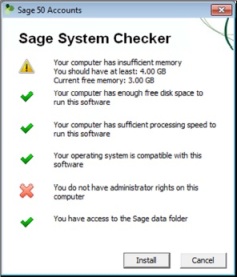 You can then cancel the installation and upgrade the machine to make sure it meets the requirements before restarting the process.
 - Massive performance improvements – speed improvements have been made in every area, including big processes such as Check Data, Bank Reconciliation, Year End and Bank Activity. There have also been improvements to concurrency – users will no longer be locked out of Sage 50 on their own machines when another user is running a report or trying to open the same data.
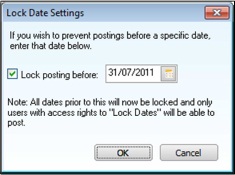
- Lock Date – there is now the ability to restrict users from posting any transactions dated before a date of your choosing, meaning your management reports are much more reliable.
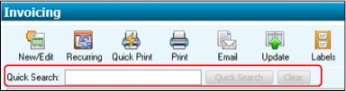
- Quick Search – this new search toolbar makes it much simpler to find any record within the majority of ledgers. Quick Search will search all text-based fields within the records and can search for any combination of text, numbers or alphanumeric queries. Up to a maximum of sixty characters can be searched.
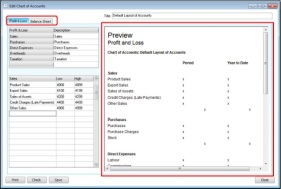
- Chart of Accounts – the Chart of Accounts has been updated to show profit before AND after tax, and also now features a Preview Pane so you no longer have to run the full report to see any changes you have made to your layout.
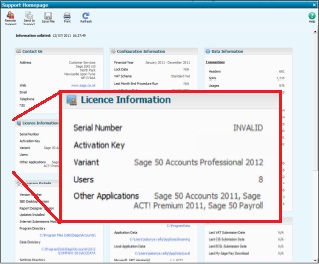
- Support Home Page – this new page is invaluable if you ever find yourself on the phone to Sage Support (or your Sage partner). It lists everything the technician may ask you about your software on one layout, allowing your problem to be resolved much faster.
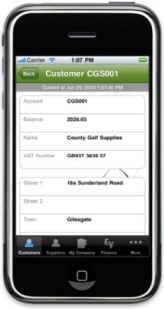
- Sage 50 Accounts Mobile – you can now access your Sage 50 Accounts data on your phone through a live secure gateway link, free of charge. You can limit what users see on their phone, so some could have full access whilst others may only be able to see an overview. The service is currently only available for Blackberrys and iPhones and is only compatible with Sage 50 Accounts 2012.


Subscribe to:
Posts (Atom)